Magnifier for Omarchy
A screen magnifier plugin for low-vision users of Omarchy
About
Magnifier is a plugin for Omarchy, the Arch Linux and Hyprland desktop. Hyprland already has a whole-screen zoom that follows the pointer, but out of the box it has no limits, no feedback, and it forgets your zoom level every time the config reloads. Magnifier wraps that zoom into something a low-vision user can live in all day: zoom with the scroll wheel, a key or a pinch, see the zoom level in a big popup beside the pointer, invert the colours of the whole screen, and on a two-monitor desk give each monitor its own pointer and its own zoom level.
It is listed in the official Omarchy plugin marketplace and the source is on GitHub under the MIT license.
Features
- Zoom in and out one step at a time with the scroll wheel, keyboard keys, or a touchpad pinch
- One key to jump to your preset zoom (300% by default) and one key to turn zoom off
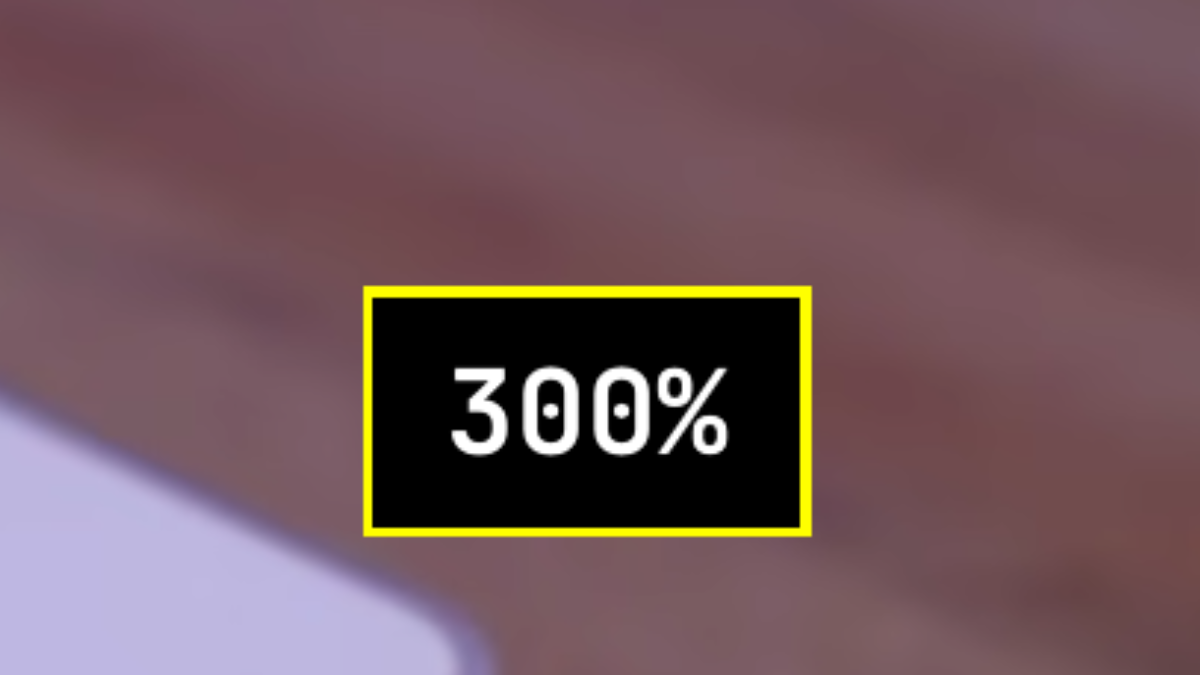
- A large zoom percentage popup next to the pointer on every change, styled to match the active Omarchy theme
- Zoom limits you set, so a stray scroll can never zoom past what is usable
- Zoom level that survives Hyprland reloads, theme changes and monitor events
- Whole-screen colour inversion on a single key
- Per-monitor memory on multi-monitor desks: each monitor keeps its own pointer position and zoom level
- Frozen zoom: the monitor you leave stays magnified exactly as you saw it, and keeps updating
- Mouse lock, so the pointer cannot drift from one monitor to the other without you noticing
- A command line tool for scripts and custom bindings
- Every hotkey can be changed or switched off, and all of them show up in Omarchy's hotkey list
- No external dependencies and no sudo. Everything it uses ships with a stock Omarchy 4 install
Hotkeys
These are the defaults. Every one can be changed or switched off in the settings.
| Keys | What happens |
|---|---|
| Ctrl + Alt + Scroll up | Zoom in by one step |
| Ctrl + Alt + Scroll down | Zoom out by one step |
| Ctrl + Alt + = | Zoom in by one step (keyboard only) |
| Ctrl + Alt + - | Zoom out by one step (keyboard only) |
| Ctrl + Alt + Z | Zoom to the preset (300%) |
| Ctrl + Alt + X | Zoom off (100%) |
| Ctrl + Alt + I | Invert the colours of every screen (press again to restore) |
| Super + Pinch on the touchpad | Zoom in and out continuously |
| Super + Ctrl + Scroll down | Jump to the next monitor |
| Super + Ctrl + Scroll up | Jump to the previous monitor |
| Super + Ctrl + M | Unlock or lock the mouse (two or more monitors) |
| Super + front side button | Zoom to the preset (only when side buttons are enabled) |
| Super + back side button | Zoom off (only when side buttons are enabled) |
Omarchy's own Super + Ctrl + Z (zoom in) and Super + Ctrl + Alt + Z (zoom reset) keep working. The plugin keeps their result inside your limits and remembers it across reloads, like its own keys.
Using Two Monitors
Hyprland's zoom is a whole-screen zoom that follows the pointer. On one monitor that is perfect. On two monitors it falls apart for low-vision use: the pointer drifts across the edge without you noticing and the zoom lands on the wrong monitor, there is one zoom level for the whole desk, and finding the pointer again on a wide monitor at high zoom is slow.
With two or more monitors the plugin turns the desk into independent screens. Each monitor keeps its own pointer position and its own zoom level, and one hotkey hops between them.
- Jump. Super + Ctrl + Scroll moves you to the next or previous monitor. The pointer lands where you last left it and that monitor's own zoom level comes back.
- Mouse lock. While locked, the mouse cannot drift from one monitor to the other. A jump is the only way across. Press Super + Ctrl + M to unlock when you want to drag a window over, then press it again to lock.
- Frozen zoom. The monitor you leave stays exactly as you saw it. If it was magnified it stays magnified at that spot and keeps updating, so a video keeps playing in it. When you jump back the live magnifier takes over at the same spot.
A typical day: put a video on the second monitor, jump to the first, zoom to 300% and work. The video keeps playing full size at 100%. Jump back when you want to watch, and your pointer is where you left it.
Requirements
- Omarchy 4 (Quattro) with the Lua Hyprland config. The plugin does not work on Omarchy 3 and its
.conffiles. - Hyprland 0.56 or newer, which Omarchy 4 ships.
There are no external dependencies. Everything the plugin uses is part of a stock Omarchy 4 install. Nothing is downloaded and nothing needs sudo.
Install
Two steps. The first adds the plugin to Omarchy. The second connects it to Hyprland.
omarchy plugin add https://github.com/JPDoesDev/omarchy-magnifier --enable
~/.config/omarchy/plugins/jpdoesdev.magnifier/install.sh
The install script does four things, and does each only once even if you run it again:
- Appends a marked settings block and the loader line to
~/.config/hypr/hyprland.lua. - Puts the
omarchy-magnifiercommand line tool on your path. - Makes sure the popup plugin is enabled in omarchy-shell.
- Reloads Hyprland and checks that the bindings and the popup answer.
That is all. Press Ctrl + Alt + Z and the screen zooms to 300% with a popup beside the pointer.
To update later:
omarchy plugin update jpdoesdev.magnifier
hyprctl reload
Settings
All settings live in one Lua table in ~/.config/hypr/hyprland.lua, above the loader line
the installer added. Every key is optional. A missing key, or one with the wrong type, falls back to
its default, so a typo can never leave you without zoom. Here is a typical block with the keys people
change most often:
-- Omarchy Magnifier settings (every key is optional)
omarchy_magnifier = {
  preset_zoom = 3, -- Ctrl + Alt + Z goes here (3 = 300%)
  step = 1, -- change per scroll notch
  max_zoom = 10,
  side_buttons = false, -- true for Super + side buttons
  keys = {
    lock_toggle = "SUPER + CTRL + M",
  },
}
Want a high-contrast popup? Set the colours yourself and they override the theme:
omarchy_magnifier = {
  osd_style = { background = "#000000", text = "#ffffff", border = "#ffff00" },
}
After editing run hyprctl reload. The full list of settings, the command line tool, and
troubleshooting steps are in the
README on GitHub.
Removal
Two steps, the reverse of the install. Nothing is left behind and no sudo is needed.
~/.config/omarchy/plugins/jpdoesdev.magnifier/install.sh --uninstall
omarchy plugin remove jpdoesdev.magnifier
Links
Bug reports and pull requests are welcome. The repository has a contributing guide, the automated tests, and the manual test plan used before each release.