GamingVision
Making games accessible for visually impaired players
About
GamingVision is a Windows accessibility tool that uses computer vision and text-to-speech to make video games accessible to visually impaired players. The application detects UI elements in games using trained YOLO models, extracts text via OCR, and reads it aloud with configurable priority levels.
As a visually impaired gamer, I built this tool to solve my own accessibility challenges. Many games lack built-in screen reader support, making it difficult for players with low vision to read menus, inventory items, and in-game text. GamingVision bridges that gap.
This project evolved from my earlier Python-based "No Man's Access" tool, rebuilt from the ground up in C#/.NET 8 for better performance, easier distribution, and a proper Windows GUI.
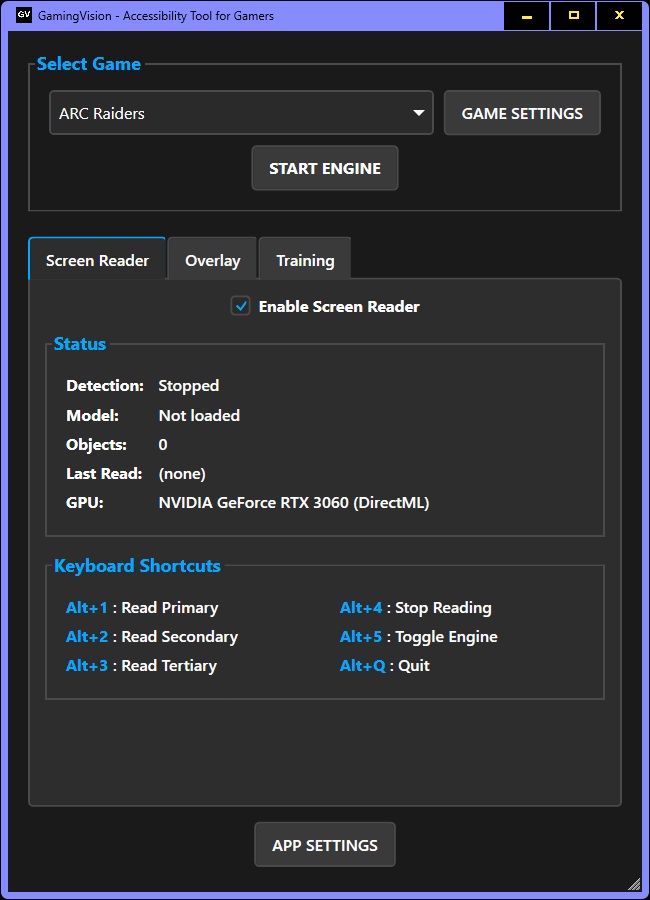
Key Features
- Real-time object detection using YOLOv11 models via ONNX Runtime
- GPU acceleration with DirectML (works with NVIDIA, AMD, and Intel GPUs)
- Three-tier detection system: Primary (auto-read), Secondary, and Tertiary objects
- Windows text-to-speech with configurable voices and speeds per tier
- OCR integration using Windows.Media.Ocr for text extraction
- Global hotkeys so you can control the app while gaming
- Per-game profiles with custom hotkeys and voice settings
- Training Tool for new game models
- High contrast, accessibility-first interface
- Debug logging
How It Works
GamingVision uses a three-tier detection system designed around how gamers actually interact with game UIs:
- Primary objects - Quick-reference items like menu titles, item names, button labels. These can be set to auto-read when they change.
- Secondary objects - Detailed information like descriptions and quest logs. Read on-demand via hotkey.
- Tertiary objects - Additional context like controls, hints, and menus. Also read on-demand.
This approach lets you quickly navigate menus and only hear detailed information when you actually want it, rather than being overwhelmed with constant speech.
Visual Overlay
In addition to text-to-speech, GamingVision can highlight detected objects with high-contrast visual markers. This helps players with low vision quickly locate UI elements on screen.
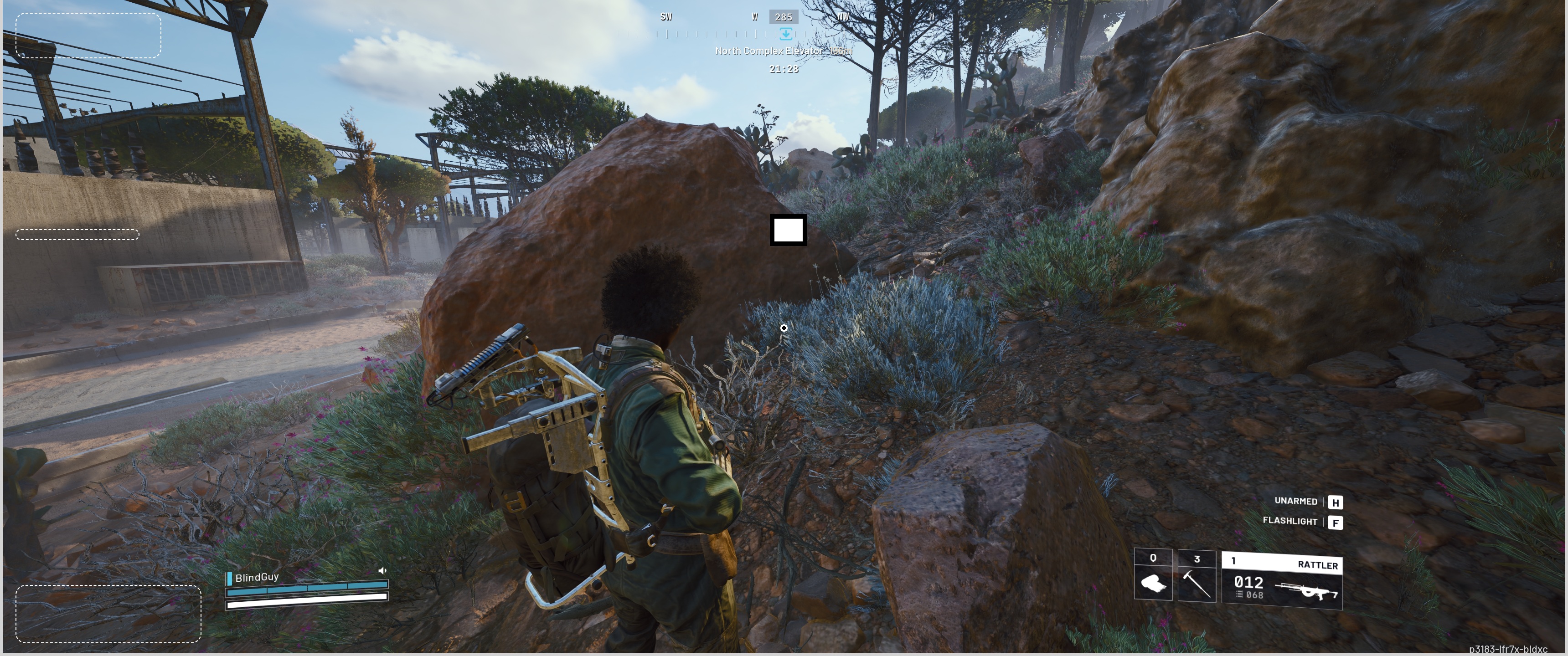
This feature is in early development and may have performance trade-offs depending on your hardware.
Default Hotkeys
- Alt+1 - Read primary objects
- Alt+2 - Read secondary objects
- Alt+3 - Read tertiary objects
- Alt+4 - Stop reading
- Alt+5 - Toggle detection on/off
- Alt+Q - Quit application
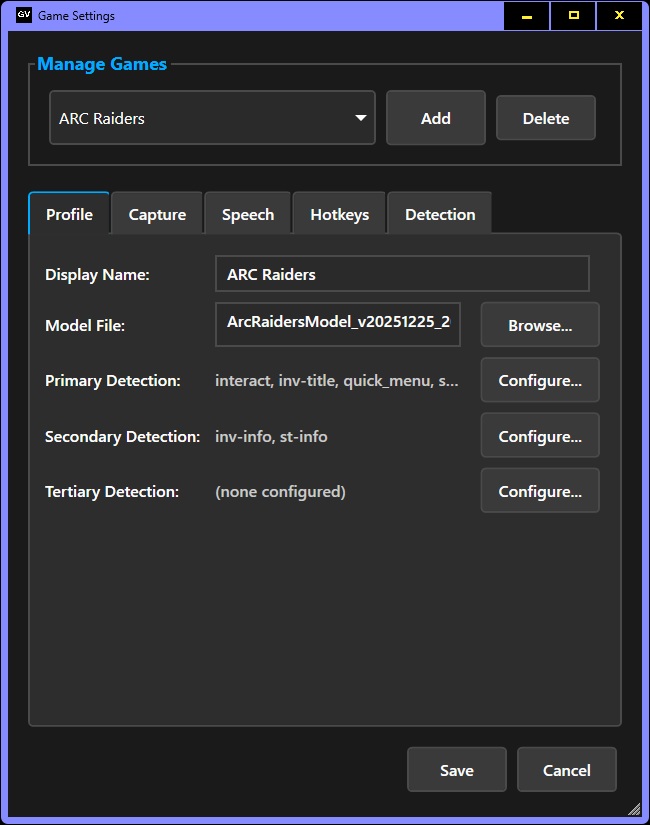
All hotkeys are configurable per game in the Game Settings panel.
Getting Started
Requirements
- Windows 10 or 11 (64-bit)
- .NET 8.0 Runtime
- GPU with DirectML support (NVIDIA, AMD, or Intel) - falls back to CPU if unavailable
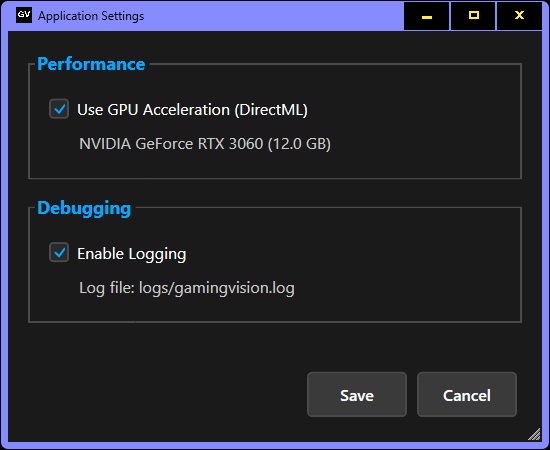
Application-wide settings like GPU acceleration and debug logging can be configured in the App Settings panel.
Quick Start
- Download the latest release from GitHub
- Extract the ZIP file to a folder of your choice
- Run GamingVision.exe
- Select a game from the dropdown (No Man's Sky is included)
- Click "Start Detection" and launch your game
- Use the hotkeys to have UI elements read aloud
Download & Links
Adding Support for New Games
Each game requires its own YOLO model because every game has a unique UI design. Adding support for a new game means collecting screenshots and training a custom model.
Training Data Collection Tool
GamingVision includes a console-based tool for collecting training screenshots. While playing the game, press F1 to capture a screenshot. The tool saves images to a training_data folder. If a model already exists for the game, it will auto-label detected objects. Press Escape to exit.
Process for New Game Support
- Collect screenshots using the Training Tool while playing
- Contact me for guidance on annotating the screenshots
- Submit annotated data for model training
If you'd like to help add support for a game you play, reach out:
Why This Project Exists
The primary goal of GamingVision is to help visually impaired players enjoy games that would otherwise be inaccessible. But there's a bigger picture here.
This tool also serves as a demonstration for game developers. Everything GamingVision does through computer vision and external screen reading could be done far more effectively if built directly into games. Native accessibility features would be faster, more accurate, and wouldn't require players to run additional software.
If you're a game developer interested in making your game more accessible, I'd love to collaborate. The techniques used in GamingVision - tiered UI reading, configurable speech priorities, hotkey-triggered announcements - could all be implemented natively with much better results.
Community Contribution
You can help expand GamingVision's game support by collecting training data. The more games we have models for, the more players we can help.
Get In Touch
Interested in working together on game accessibility? Reach out: