Desert Racing Live Stream
Live offroad racing broadcast system

About
Desert racing takes many people and massive logistics to get two people and a truck out on the course. We wanted a way to "take everyone with us" — team members, friends, family, and fans rarely get to participate in the action on race day. This live streaming system changes that.
Now everyone can watch and interact with the truck in real-time from anywhere in the world. It also creates a platform for sponsors to showcase their involvement in the sport, with live product visibility and direct engagement with an enthusiastic audience.
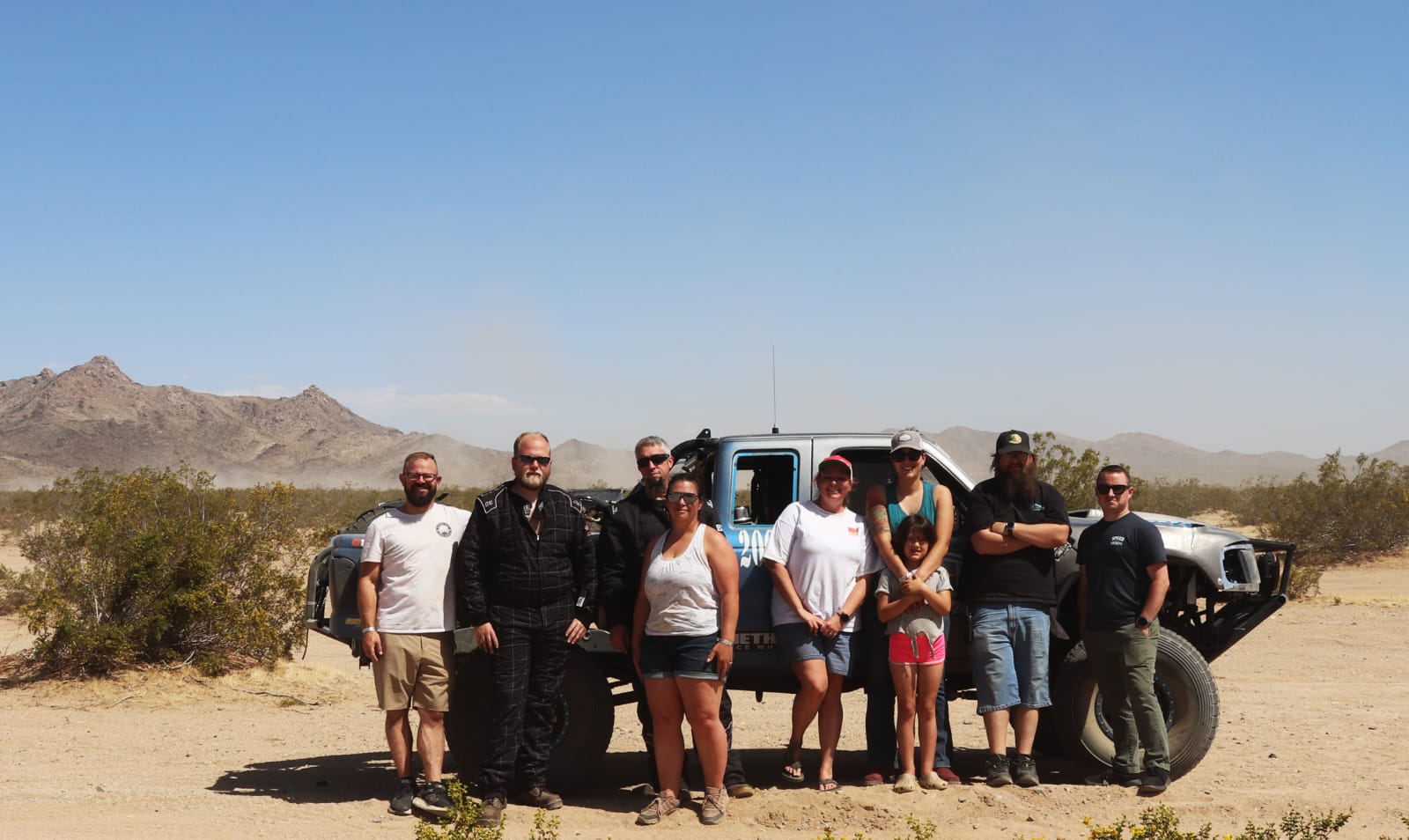
This page documents the complete system: the hardware in the truck, cloud infrastructure, and production setup. Whether you're a race team looking to set up your own stream, interested in partnering, or a potential sponsor — we'd love to hear from you.
System Overview
The system has four main components:
- Race Truck — GoPros stream video and intercom audio out via Starlink. Discord brings communication back in from the production team.
- RTMP Server — A cloud server captures the GoPro streams and forwards them to the production station.
- Stream Station — A computer running OBS where hosts monitor the race, interact with the audience, and mix all feeds into the final broadcast. Can be trackside or remote.
- Discord — Bridges team communication, allowing hosts to talk directly to the driver/co-driver and bring guests on-air.
Features
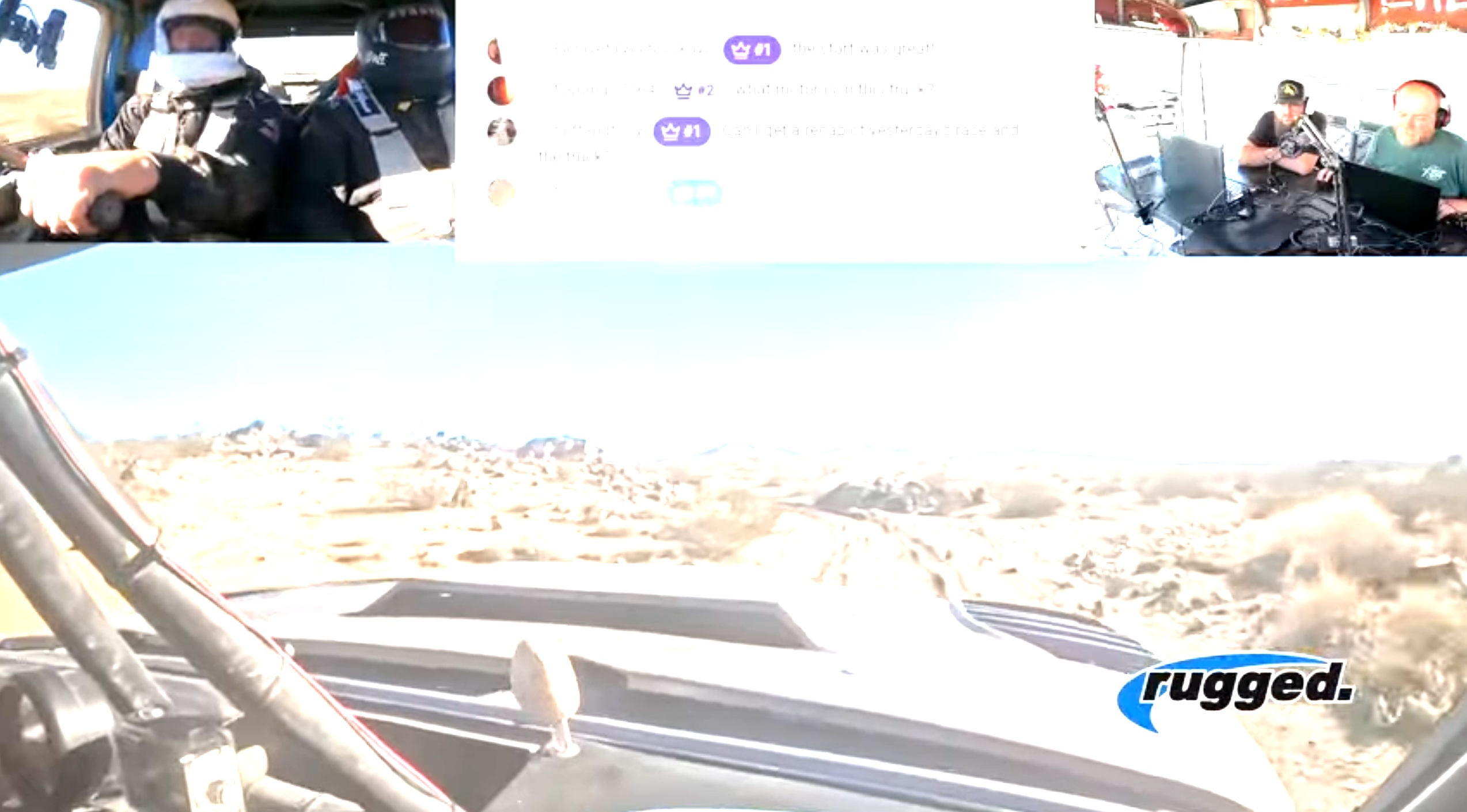
- Live in-truck audio from driver and co-driver
- Multiple camera angles from inside the race truck
- Real-time commentary from trackside hosts
- YouTube chat can interact with the crew live
- Guests can call in or join trackside
- Team-wide monitoring and communication
Truck Setup
The following hardware makes the live stream possible from inside the race truck:
GoPro Cameras (x2)
We run two GoPros with GoPro Labs custom firmware installed. This firmware enables RTMP streaming while simultaneously recording locally. Requires GoPro Hero 7 or later.
- Forward-facing camera streams at 1080p
- In-cab camera streams at 720p (to save bandwidth)
- Both record locally at 1080p as backup
- USB power cables wired into truck electrical on dedicated switches
- Cases with USB passthrough battery doors for continuous power
GoPro provides a QR code generator to configure streaming settings. Point the camera at the QR code to apply the configuration. We save screenshots of these QR codes and share them in team group chats — the cameras read QR codes directly off phone screens, making remote configuration easy.
Lessons Learned:
- Heat is the enemy. GoPros overheat quickly in direct sunlight with no airflow. They work fine while moving but fail during stops. Keep them shaded when stationary.
- Keep a printed QR code in the truck. The co-driver can restart a failed stream mid-race by simply pointing the GoPro at the "Start Stream" QR code.
- Setup is finicky, operation is reliable. Initial configuration takes patience, but once working, starting/stopping streams is straightforward. A failed GoPro doesn't kill the main stream — you just lose that feed until it reconnects.
- GoPros can't handle LAN drops. If Starlink loses power (even briefly), the GoPros won't auto-recover. However, if we lose internet but the LAN stays alive, they continue transmitting and reconnect automatically when internet returns.
Rugged Radios Intercom
The intercom system connects driver and co-driver helmets (with built-in headphones and microphones) and has Bluetooth capability to bridge external communications into the truck.
Lessons Learned:
- Use earplug-style headphones. Without proper noise isolation, driver/co-driver cannot hear external comms over engine and road noise.
- Balance volumes carefully. Phone volume can be adjusted to balance in-truck conversation vs. external communication.
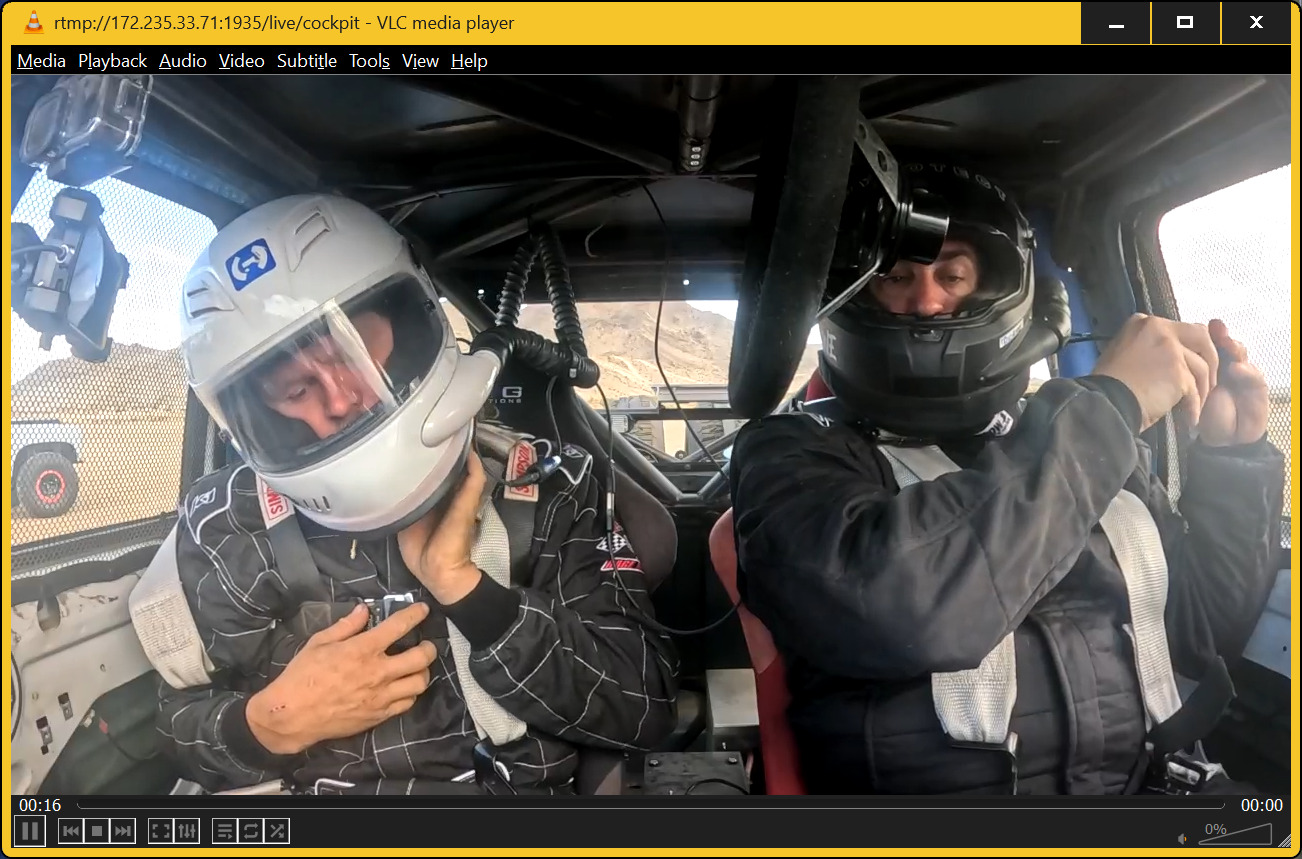
Phone (Discord Communications)
A phone running Discord connects to the intercom via Bluetooth. The driver/co-driver join a voice channel to communicate with the production team and stream hosts in real-time.
- Mounted on the passenger A-pillar, out of line of sight but accessible
- Tube clamp mount for secure placement
Lessons Learned:
- Discord is incredibly reliable. Even when video feeds fail, audio stays up. The app is fault-tolerant and maintains connection through network interruptions.
- Works on cell data as fallback. If Starlink dies completely, Discord automatically switches to cellular and keeps audio alive.
- Intercom off = phone audio. Turning off the intercom disconnects Bluetooth and routes audio through the phone speaker. This lets the co-driver step out of the truck, phone in hand, and continue talking to the stream while showing video from the phone camera.
Starlink Mini
Satellite internet via Starlink Mini provides the uplink for all video feeds. Connected to a dedicated power switch on the truck.
- Typical upload speeds: 10-30 Mbps
- Below 10 Mbps, video streams start dropping frames
Lessons Learned:
- Starlink cannot handle voltage dips. Even the brief voltage drop from starting the truck kills the Starlink. Our four-cylinder Ford Ranger with a large battery still causes enough drop to reset it.
- Solution: Isolated power. A switched relay connected to a small auxiliary battery isolates the Starlink during engine start, preventing power interruption.
Stream Station Setup
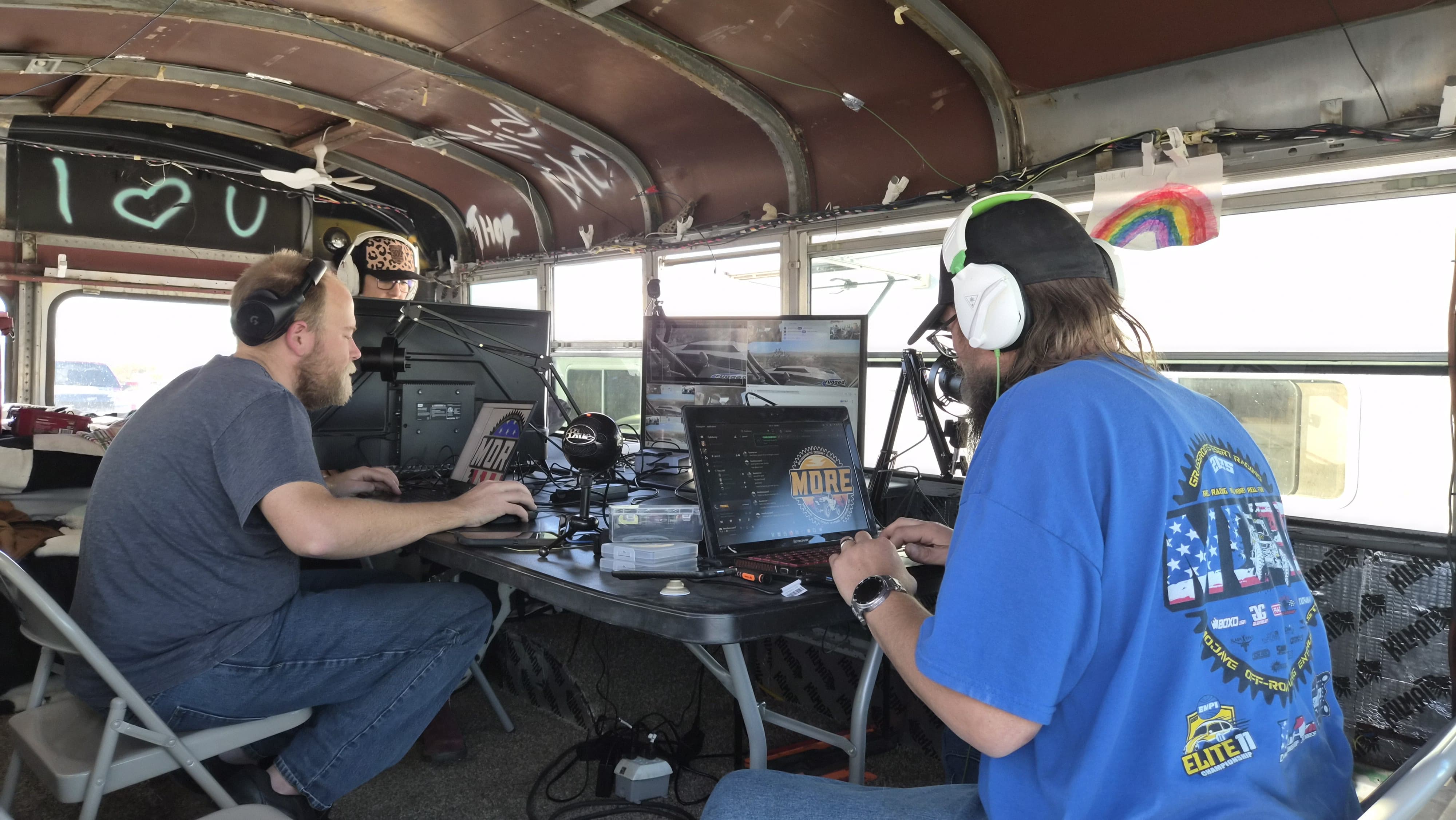
Content coming soon.
RTMP Server Setup
The RTMP server acts as a relay between the GoPros in the truck and the OBS production station. GoPros stream to this server, and OBS pulls the feeds from it. This decouples the truck from the production station and allows multiple consumers to pull the same stream.
1. Create a Cloud Server
Spin up a Linux VPS with any cloud provider. A Linode Nanode ($5/month) or similar small instance is sufficient. Choose Ubuntu 24.04 LTS as the operating system.
During setup, create a non-root user with sudo privileges. Note your server's public IP address.
2. Download the Setup Script
3. Upload the Script to Your Server
From your local machine, use SCP to send the zip file to your server:
scp setup.zip youruser@YOUR_SERVER_IP:~4. Run the Setup Script
SSH into your server:
ssh youruser@YOUR_SERVER_IPUnzip and run the script:
unzip setup.zip
sudo bash setup.sh
The script will install and configure everything automatically: nginx with RTMP support, firewall rules, a monitoring interface, and performance optimizations. When complete, it displays your server's RTMP URLs and monitoring endpoints.
5. Configure Your GoPros
Use the GoPro Labs QR code generator to create a QR code with your RTMP URL:
rtmp://YOUR_SERVER_IP:1935/live/gopro1Use gopro2, gopro3, etc. for additional cameras.
6. Pull Feeds into OBS
Add a Media Source in OBS and enter the same RTMP URL. OBS will pull the live feed from the server.
Monitoring & Troubleshooting
The RTMP server provides two web pages for monitoring:
-
Stream Statistics:
http://YOUR_SERVER_IP:8080/stat
Shows all active streams, connected clients, bitrates, and connection times. Use this to verify GoPros are streaming and to see who is pulling feeds. If a GoPro isn't showing up here, it's not connected to the server. -
Health Check:
http://YOUR_SERVER_IP:8080/health
Simple endpoint that returns "nginx-rtmp running" if the server is operational. Useful for quick verification that the server is up.
Testing Streams with VLC
VLC Media Player is a convenient way to test individual streams. OBS can sometimes fail to preview video even when the stream is working, so VLC is useful for troubleshooting or for team members who just want to monitor a feed without running OBS.
To open a stream in VLC:
- Open VLC and go to Media → Open Network Stream (or press Ctrl+N)
- Enter the RTMP URL:
rtmp://YOUR_SERVER_IP:1935/live/gopro1 - Click Play
If VLC shows video but OBS doesn't, the issue is with OBS configuration, not the stream itself.
Useful Commands
# Check if nginx is running
sudo systemctl status nginx

# View error logs in real-time
sudo tail -f /var/log/nginx/error.log

# Test a stream locally (requires ffplay)
ffplay rtmp://YOUR_SERVER_IP:1935/live/gopro1

# Check firewall rules
sudo ufw status

# Restart nginx after changes
sudo systemctl restart nginx
Roadmap
- Android race team management app
- Live GPS location tracking of the truck
- Web viewer with live map overlay showing truck position
- Multi-team streaming — multiple trucks on one broadcast with the ability to switch between vehicles live
- Driver-to-driver communication — connect drivers across different trucks so they can talk to each other during the race